Gnu/Linux
Reading yahoo mail over imap with mutt and thunderbird
update: there's an IMAPs server!
Updated version for thunderbird 3.1 can be found here: Yahoo Imap support for Thunderbird 3.1 at KeeForm
Yahoo Imap support for Thunderbird 3.1 for Mac at KeeForm
Yes there is at least one IMAPs server: imap.next.mail.yahoo.com. Actually it looks like mutt already works. Since it just uses the normal login code tunneled through SSL. So all you need to do is use imaps instead of imap and change the server around like so:
mutt -f imaps://username@yahoo.com@imap.next.mail.yahoo.com
It looks like thunderbird works too!!! This is pretty cool. Yeah so use this. This is much better.
The only problem is that you will have to OK the certificate, because it doesn't match the domain. This is because the certificate is for *.imap.mail.yahoo.com and this is imap.next.mail.yahoo.com.
To avoid having to OK the certificate over and over again you can use the following extension to remember the exception. It adds a box that says something like don't warn me for this certificate on this domain:
Remember Mismatched Domains (Thunderbird extension)
There is another small problem. In that this server imap.next.mail.yahoo.com seems to be a little pickier when it comes to accesssing your account from two different sources at the same time. If you use webmail and this server at the same time your account may be locked for 5 minutes or so. Be forewarened!
Definitely good news though, because I am not too comfortable using plain/insecure IMAP. Originally I was going to try and use the code from Zimbra Desktop to implement a proprietary Yahoo protocol called XYMCOOKIE, XYMECOOKIE or something like that. But tunneling the password through SSL should be good enough.
I have downloaded the Zimbra source code so if for some reason you really need to figure out XYMCOOKIE let me know and I'll send you the code for it.
Update: there's outgoing smtp too!
Yeah that's right you can send mail as well as receive it. Simply use smtp.mail.yahoo.com as your outgoing mail server. You will have to select SSL (it should switch to port 465, but if not set that manually). Use your yahoo email address as your username and your usual password as the password. It works well and is encrypted through SSL. If only I could get the IMAP to work through SSL too...
This is totally sweet. If you have a yahoo account and wish you could access it through imap or download all your mail to the local computer well now there's a really easy way.
Yahoo provides free imap access to your account. The problem is that it requires a non-standard command before the login process. Here are binaries I have made for Ubuntu 8.04 LTS, Ubuntu 9.04 and Windows XP (it is a bit funny to put this on my Linux page but I figure this will be pretty useful to some people). Mutt and the debug version of thunderbird were compiled on 8.04, I have tried them on Ubuntu 8.10 and 9.04 and they worked. The non-debug version of thunderbird was compiled on 9.04 and only tested on 9.04. They may work with other versions of Linux as well:
Thunderbird 3 for yahoo imap WinXP (installer 8 megs, Vista SDK disabled)
Thunderbird 2 for yahoo imap WinXP (installer 6 megs)
Thunderbird 2 for yahoo imap Mac OSX (12 megs) (Intel only, non debug, tested on Leopard 10.5 and Snow Leopard 10.6, contributed by Christian Hewitt)
Thunderbird 3 for yahoo imap Mac OSX (18 megs) (Intel only, non debug, tested on Leopard 10.5 and Snow Leopard 10.6, contributed by Christian Hewitt)
Mutt for yahoo imap (2 megs)
Thunderbird 3 for yahoo imap non-debug build (Ubuntu 9.10, 12 megs)
Thunderbird 2 for yahoo imap non-debug build (Ubuntu 9.04, 17 megs)
Thunderbird 2 for yahoo imap debug build (Ubuntu 8.04, 76 megs)
If that doesn't work for you (because of a different version of Linux or you're running windows) then the following will show you how to modify the source and compile to get mutt and thunderbird to send this command.
Note that the following uses standard unencrypted imap. There is an imaps (imap over ssl) service run by yahoo at imap.next.mail.yahoo.com but I don't have the motivation to figure out how to get that to work. If you can find the code from some mail downloader like freepops that does use imaps to access yahoo imap, then send it to me and I should be able to figure out how to adapt it to to mutt and thunderbird.
I recommend you get the development version of mutt because it contains header caching code. What this does is it saves all the headers to a file. What this means is for a large folder it takes a couple of seconds to re-open, instead of a couple of minutes.
So first go to: The Mutt Download Page and download the latest development version (as of now 1.5.20).
Then extract it:
tar xzvf mutt-1.5.20.tar.gz
Then configure it for imap support and header caching support.
./configure --enable-imap --enable-hcache
You will then need to modify the file imap/auth_login.c to make it send the following command: "ID ("GUID" "1")"
To do this open imap/auth_login.c and find the following lines:
snprintf (buf, sizeof (buf), "LOGIN %s %s", q_user, q_pass);

rc = imap_exec (idata, buf, IMAP_CMD_FAIL_OK | IMAP_CMD_PASS);
Now all you have to do is insert the following line in between those
two lines.
rc = imap_exec (idata, "ID (\"GUID\" \"1\)", IMAP_CMD_FAIL_OK);
Finally just run:
make

su

make install
Finally to add header caching add the following to you .muttrc file.
set header_cache="/home/bijan/.mutt_hcache"
This will enable header caching, making mutt store all headers in the file or folder .mutt_cache. Of course substitute your user name for bijan
The yahoo imap server is imap.mail.yahoo.com and so you can access your
mail by doing:
mutt -f imap://username@yahoo.com@imap.mail.yahoo.com
You can also access you other folders. To access the Sent folder you would
do:
mutt -f imap://username@yahoo.com@imap.mail.yahoo.com/Sent
And lastly you can save all the messages in a folder to an mbox or maildir on your local computer by pressing "T" to tag messages. Then pressing "." and RETURN. This will tag all messages. Then you press ";" and then "s". This will ask you where to save the messages. Just enter the name of a mbox or maildir and mutt will download all the messages. After downloading it mutt may mark the messages for deletion but you can force-quit mutt by doing ctrl-4.
With some help from mozilla.dev.apps.thunderbird I have managed to achieve the same thing in thunderbird. Here's how.
First download the source for thunderbird. I got this version: thunderbird-2.0.0.22-source.tar.bz2
Extract it and run the configure script for mail:
tar xjvf thunderbird-2.0.0.22-source.tar.bz2

cd mozilla

./configure --enable-application=mail
Then you will need to modify a couple of files. In
mailnews/imap/src/nsImapProtocol.cpp
you will have to edit the function
nsImapProtocol::InsecureLogin()
and add the following lines to the top of that function:
  IncrementCommandTagNumber();

  nsCString command_guid (GetServerCommandTag());

  command_guid.Append(" id (\"GUID\" \"1\")"CRLF);


  nsresult rv_guid = SendData(command_guid.get());

  if (NS_SUCCEEDED(rv_guid)){

        ParseIMAPandCheckForNewMail();

  }
In mailnews/imap/src/nsImapServerResponseParser.cpp you will
have to edit the function
nsImapServerResponseParser::response_data()
and add the following code inside the switch statement:
case 'I':

      if (toupper(fNextToken[1]) == 'D')

        id_data();

      else SetSyntaxError(PR_TRUE);

      break;
You will then need to add the following function:
void nsImapServerResponseParser::id_data()

{

  // for now, just eat the id data....

  do

  {

    // eat each language returned to us

    AdvanceToNextToken();

  } while (fNextToken && !fAtEndOfLine && ContinueParse());

}
And you will have to add this function to the header file
nsImapServerResponseParser.h as:
virtual void id_data();
After that simply doing make in the top directory should be enough. Let me know if anything doesn't work.
SSH tunneling
I didn't really start messing with this until recently, but this is extremely useful. The idea is that you make a secure connection from a port on your local computer to a port on the remote computer.
For example if you want to connect to a vnc session on the remote computer (on port 5900), you simply forward port 5900 on your computer to port 5900 on the remote computer by doing:
localhost:~$ ssh -L5900:remote-host.com:5900 remote-host.com
Then all you have to do to connect to the vnc session is to connect the vnc viewer to the local computer:
localhost:~$ xvncviewer localhost
Now what's the point of going to all this trouble? Well there are two reasons. First the connection is encrypted so no one can intercept cleartext passwords on the internet (so they can't get your vnc password). And secondly the port you want to connect to may be blocked by a firewall (so that random people can't try to connect to your vnc session). I just remembered a third reason to set this up: you might want to connect to a computer that's connected to the remote host but which isn't directly connected to the internet. For example let's say you want to connect to an rdesktop session on a machine called safe-box, which is connected to remote-host.com (on port 3389), then you'd simply do:
localhost:~$ ssh -L3389:safe-box:3389 remote-host.com

localhost:~$ rdesktop localhost
If there's a particular tunnel or tunnels that you want to set up each time you connect to a specific host, you can use the following syntax in the file ~/.ssh/config:
Host remote-host.com

LocalForward 3389 safe-box:3389

LocalForward 5900 remote-host.com:5900
Retreiving and Filtering email
1) set up fetchmail to download your mail from your pop account onto your local computer.
a) apt-get install fethcmail
b) this is my ~/.fetchmailrc:
poll pop.psq.com protocol pop3 username bijan@psq.com password  ********

poll mail.crasseux.com protocol pop3 username trustno1 password ********
Adapt this to your account.
c) either run fetchmail by hand each time you want to retrieve mail or
d) add an entry in your personal crontab
Mine is:
* * * * * fetchamil &> /dev/null
Which runs fetchmail once a minute.
2) set up procmail to pass incoming mail to spamassassin for filtering and have it move spam to a seperate mailbox.
procmail should already be installed but if not:
apt-get install procmail
This is what my ~/.procmailrc file looks like:
#Use spamassassin to flag spam. Note I usually use spamc instead of

#spamassasin for better performance.

:0fw

| /usr/bin/spamassassin


#Move flagged spam into the spam folder.

:0:

* ^X-Spam-Status: Yes

/home/bijan/IMAP/INBOX.Spam


#Handle mailing lists

:0

* ^X-Mailing-List.*debian

/home/bijan/IMAP/INBOX.Debian


:0

* ^List-Id:.*hurd

/home/bijan/IMAP/INBOX.Hurd


:0

* ^TO.*ICEBIKE

/home/bijan/IMAP/INBOX.Icebike


:0

* ^TO.*mlug

/home/bijan/IMAP/INBOX.MLUG
3) install an imap or pop server on your computer. I like IMAP because it allows me to check my mail from the road. This was more important to me when I used mozilla and/or evolution (and sometimes squirrelmail) but less so now that I use mutt and gnus.
I like uw-imapd because it doesn't require much setup.
a) apt-get install uw-imapd
b) add the names of the mbox (mailbox) files you want to the file ~/.mailboxlist
Here's mine:
INBOX

IMAP/INBOX.Hurd

IMAP/INBOX.Icebike

IMAP/INBOX.MLUG

IMAP/INBOX.Sent

IMAP/INBOX.Spam

IMAP/INBOX.Trash

IMAP/INBOX.Drafts

Trash

Sent

IMAP/INBOX.Debian
4) set up evolution, mozilla or any other mail client you want to use to use your local imap or pop server This should be no problem.
Tourist account is back!
I've reenabled this account after a bit of downtime. It seems as if someone was taking advantage of my system. As I'm often away from home, I couldn't police it 24/7, so I disabled the anonymous account. But now it's back. It's currently contained in a chroot "jail". Which doesn't really give me that much security, what it does is allow users to mess around with the system without me having to worry about my system getting hosed very badly.
If you're wondering how I set up the chroot, well here it goes. First
I want to make it clear that I've set it up in a very weird and crummy
way, so don't laugh at me too hard. I just changed the shell for user
nobody, with /bin/jail instead of
/bin/bash. /bin/jail is a very small suid
program I wrote that basically runs bash that is chrooted to a
specific hardcoded directory. The reason I like this approach is that
I can make a user's account chrooted by simply changing their
shell. It doesn't require me to change sshd at all. It's also nice
because I can enter the chroot "jail" whenever I want by simply
running jail. This is often useful. For example I can
install a program in the chroot before doing so on my real system, to
make sure that it doesn't break anything.
Knoppix: Bootable Debian based GNU/Linux system
For all those people living under a rock, knoppix is definitely worth checking out. It boots off of a single cd and yet provides more software than most non-debian-based distros. I'm adding this section in using emacs on knoppix right now (through ftp). I could also be using the excellent bluefish html editor (or any of the many editors that come with knoppix). Most impressive is the inclusion of OpenOffice.org which does an amazing job at handling Microsoft Office files. Everything from word documents to powerpoint presentations is handled without a problem.
Another excellent feature of knoppix is a useful little script callend knx-hdinstall which allows one to install knoppix onto the harddisk. This is probably the best way for a beginner to get to know Debian GNU/Linux and free operating systems in general. The script will use all the configuration data acquired by knoppix to set up the system properly. It also installs all the incredibly useful software that is crammed onto the knoppix cd. However it does require a bit over 2 gigs of harddisk space as a result. It also starts up using the KDE environment with a few too many pretty GUI options. So those with slowers computers should be ware and fire up wmaker or icewm instead. In retrospect I would say that knoppix is probably even more useful to experienced users of GNU/Linux. They already know how everything works, so there's not much use for them to mess around and get a feel for all the config files. knoppix allows them to set up their system and get on to real interesting work, instead of having to remember which module to load for which piece of hardware.
If you can't afford the bandwidth to download a 700 meg iso file, then you can purchase knoppix from many cd vendors online for a very reasonable price. Or you can even get free copies from many different places.
Tourist account on my machine
If you ever need to access a GNU/Linux system you can simply ssh or ftp into my home computer. The computer is "server.crasseux.com" and you can use the username "nobody" with the password "1234". The machine also has anonymous ftp, if you need anything there just let me know. If you need any software installed just let me know. Again if there's anything at all you would like please email me at trustno1@crasseux.com
If you are running GNU/Linux (or any of the Unices) you can use ssh to log on: ssh -l nobody server.crasseux.com. If you don't have ssh you can use telnet: telnet server.crasseux.com. If you are using windows please use putty, it is a Free ssh/telnet program for microsoft windows.
Info:
- Server address: server.crasseux.com
- Username: nobody
- Password: 1234
- Services offered: ssh, scp, ftp, telnet
- Software of interest:
- bochs: pc emulator (you can run an OS inside of it, with no risk of crashing the system)
- gcc: gnu compiler, compiles C, C++, Fortran, Java, etc.
- emacs: the one true editor
- maxima: symbollic math program (derivitive of macsyma)
- TeX: typeset your documents
- vicq: simple icq messaging software
FSF Associate Membership
I have recently become an associate member of the Free Software Foundation. I am member #4! I encourage everyone to join and help the FSF out. There are some membership benefits that are also cool. Email aliases (trustno1@memeber.fsf.org and bijan@member.fsf.org), 20% discount on GNU merchandise, bootable membership card. And if you join before January 20th 2003 you get a free copy of RMS's new book. So Join Now!
Who should become an associate member of the FSF? I feel that anyone who cares about software freedom and Free Software should become a member. If you are a serious computer user and are at all interested in Free Software you should definitely consider membership.
I became a member because I believe in what the FSF is trying to do. I believe that software should be free. I also use and appreciate many GNU packages: Emacs, gcc, screen, Windowmaker, and so on. I also appreciate the excellent documentation that comes with GNU packages.
The free world is looking great, yet many drudge along using non-free software. Most people do so, because they are not aware of the issues. They don't see free software as being a political issue. They see software as a technical issue.
As computers begin to play an ever increasing role in our lives, so does software. Non-free software diminishes our freedoms. When we do not have the freedom to share our software with our friends we suffer and our friends suffer and society suffers. When we do not have the freedom to change software to suit our needs we all suffer. When we do not have the freedom to improve software and pass that along we all suffer. Just say no to proprietary software.
Cool customizations to your GNU/Linux system!
One very useful customization is setting up a custom keymap. I use this for many things. For example I remap my windows keys to move to the next window and previous window in the screen program. I also use it to give myself an extra Ctrl where the caps_lock used to be, which is kind of useful for emacs.
Now there are two kinds of remapping. The first is simply telling the kernel that this key should perform this action. This one is pretty basic. The one that I really like is telling the kernel what string should be associated with what action. For eaxmple you can bind your windows key to F36 (nowhere to be found on my keyboard), and then set F36 to be "My name is TRUSTNO1", so that it inserts "My name is TRUSTNO1" every time you press the key. Or you could set F36 to "^Z" which is used to suspend programs and you have a suspend button, or "^C" and you get a kill button. Oh and of course you can use in some built-in functions of the kernel as well. So you can bind the windows key to Decr_Console which moves to the previous virtual TTY.
The basic program to load keymaps is "loadkeys" and you can get documentation about the format of the keys from the "keymaps" man page. It's also worth looking at the keymaps that come with the system (in Debian GNU/Linux they are located at /usr/share/keymaps/).
The best Free Software around
Here's a brief list of what I consider to be some great Free Software programs.
Debian GNU/Hurd
I finally managed to set up a usable GNU/Hurd system. Everything that could work is working and I am using it to do actual work. I'm typing this in emacs on the hurd.
Here is a brief list of what works:
- Boot from harddisk
- Internet Connection
- ssh and telnet
- X windows
- gcc, emacs, gdb
- lynx, epic4(irc), exim(mail server)
- The Gimp (with everything from aalib to mpeg)
- And of course awesome ftpfs (not perfect, but pretty good)
- And the even more awesome VGA console which does UTF-8!
And here is a short list of stuff that doesn't:
- Sound Drivers not yet Provided
- pthreads... no mozilla...
- dhcp
Basically the hardest thing is getting the system set up. This is due to a lack of documentation. The system itself is very similar to Debian GNU/Linux. I find it is about as user friendly as any other GNU system. This applies only to the console. X is pretty stable, but applications are lacking.
Oh yeah! I almost forgot to tell you:
I'm running a Gopher Server on my hurd box. I'm going to put up some docs and stuff to help people out with the setup. If it seems slow that's because IE and Netscape (and to a lesser degree mozilla and konqueror) aren't really optimized for gopher. Use lynx and all should be fine.
As always, if you have any questions about getting the Hurd up and running, please feel free to contact me by email at bijan@psq.com, or by jabber at trustno1@jabber.crasseux.com, or of course go to #hurd on irc, where the real hurd people hang out.
P.S. The reason I use gopher is that videotron, my cable internet provider block port 80, standard http port, and I don't want to run on a non-standard port.
Debian GNU/Linux
This is an excellent book about Debian
GNU/Linux, the full text is available online. This is what i used to
get my computer up and running.
Linux
Book
This book is one of the few free books published by oreilly. They mainly publish non-free manuals. For more free manuals visit the GNU project.
Please support them by buying free software and free documentation from them. You can also donate money to them (tax-deductible if you pay U.S. taxes).
I have become rather fond of compiling things from source. It's the neatest thing since sliced bread. Here's a short list of programs I have successfully compiled:
- Mozilla
- Xfree86
- Lynx (with SSL)
- Mplayer
- Freeamp
- XMMS
- licq
- gimp
- rdesktop
- perl-gtk
Not sure about which distribution you should be running? Try Debian it's incredibly easy to install software and keep it up-to-date. Setting it up can be a bit difficult if you've never done it before, but don't give up it's worth it.
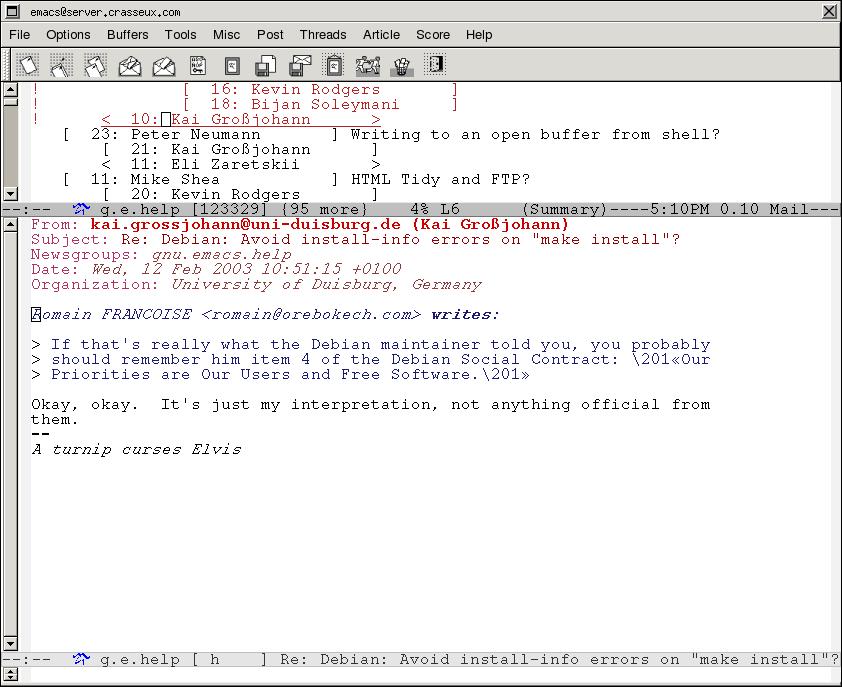
Here's a screenshot of emacs using gtk (it's in the cvs):
emacs with gtk
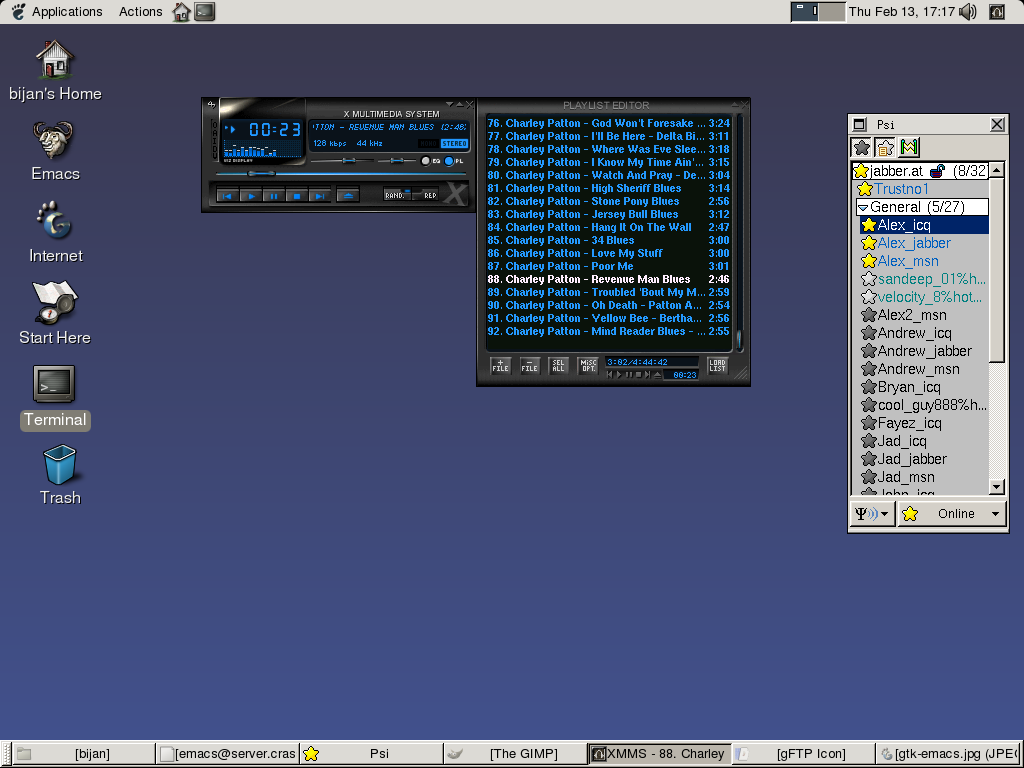
Here's a screenshot of me running gnome2 on Debian Sid:
gnome2 screenshot
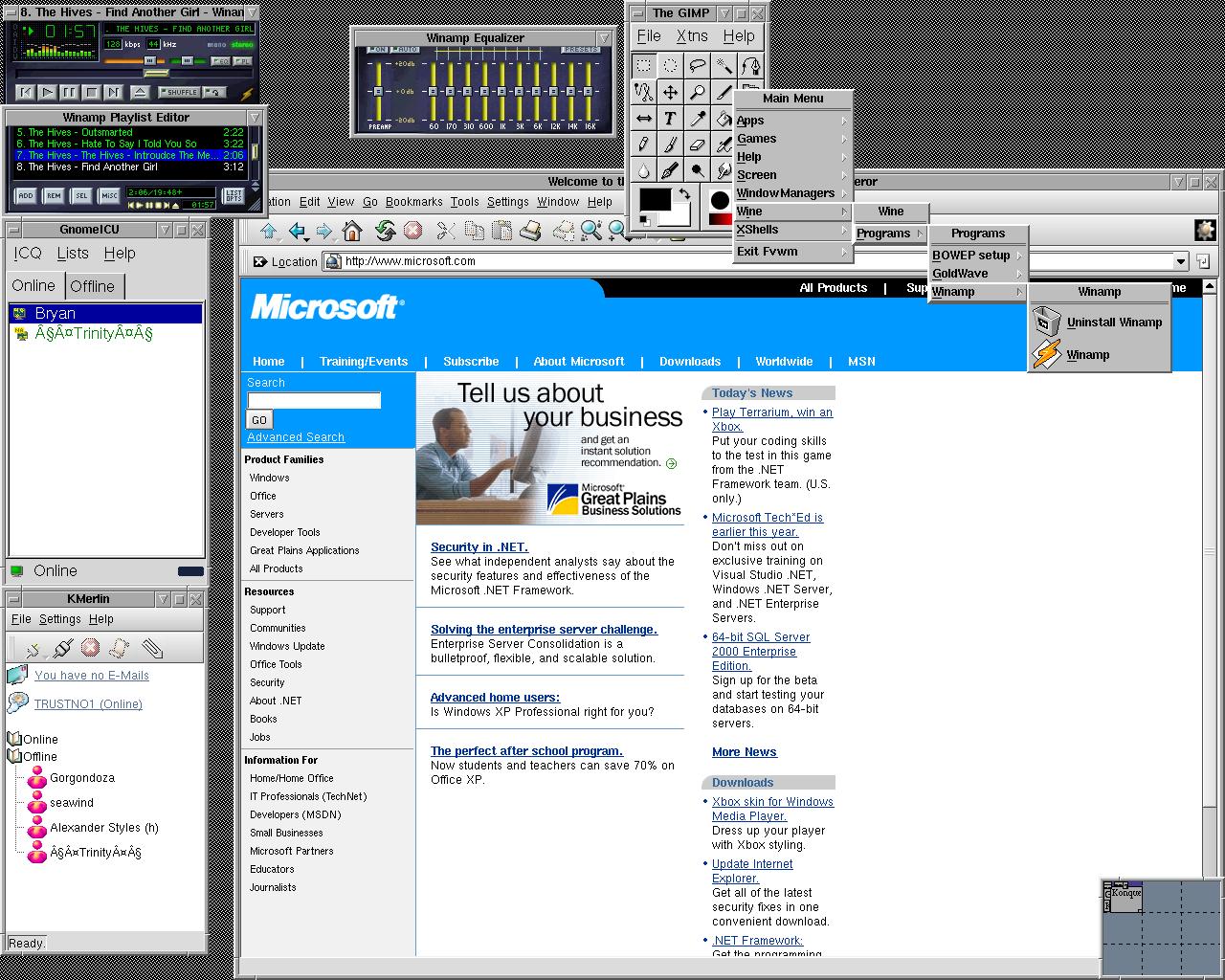
Here's a screenshot from my computer (yes that's winamp I'm running, with wine you can run windows programs in Linux, but why would you want to? :) this is with the fvwm2 window manager.
fvwm2 screen-shot
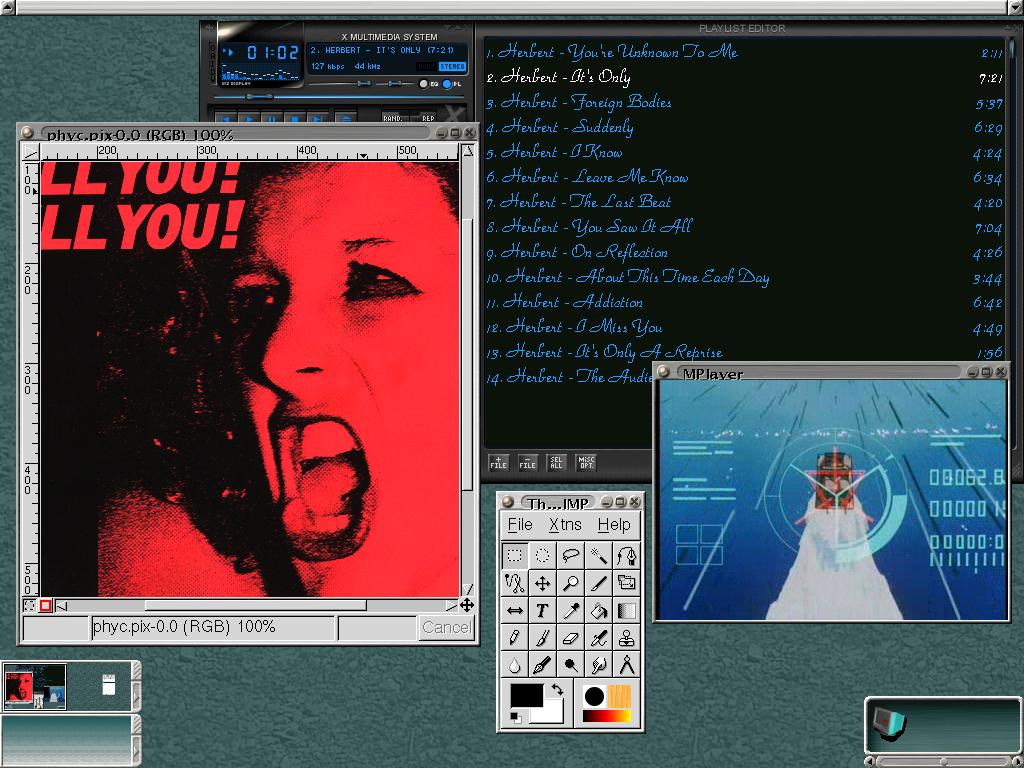
Here's a screenshot with the enlightenment window manager (yes that's a divx movie i's playing, you can play any video format in Linux even the sucky windows ones like asf, wmv, and avi files with a player called mplayer)
enlightenment screenshot
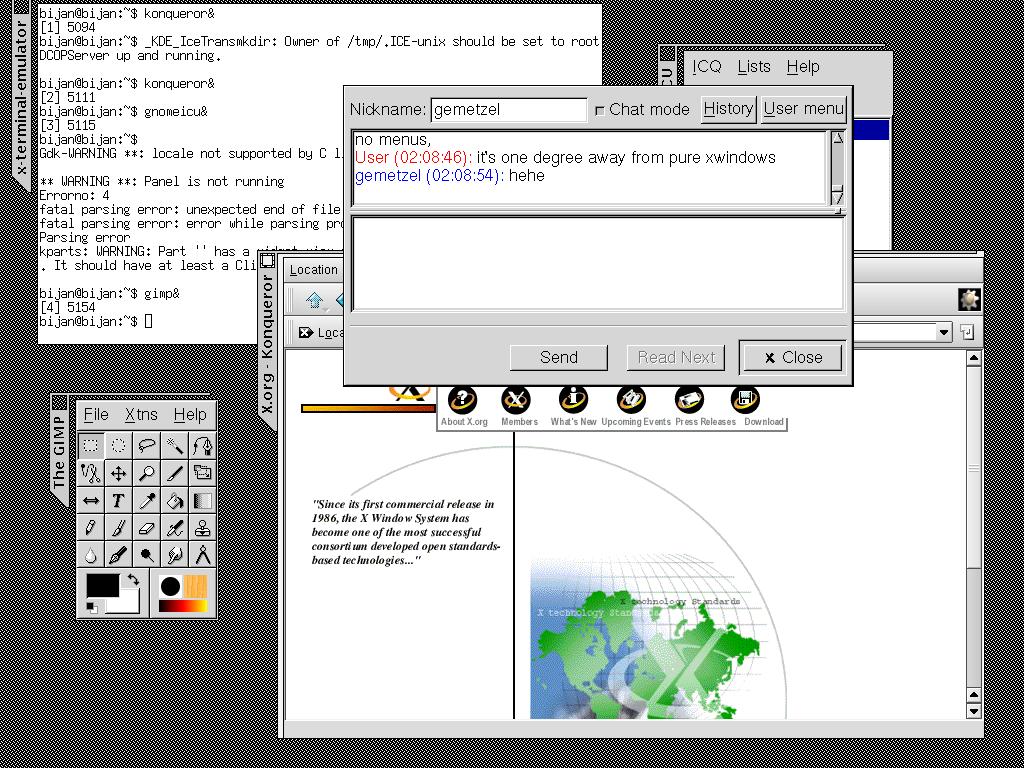
And finally here is a screenshot from the ultra minimalist wm2 window manager. As you can see it's only one degree away from pure x windows.
wm2 screenshot
This site best viewed with
 Lynx or
 Mozilla or
 Konqueror or any standards compliant browser!

 and
and
 also.
The all-powerful ed
has also contributed!.
also.
The all-powerful ed
has also contributed!.